Intro to workspaces

Everything you do in Notion takes place in a workspace. It's your virtual home to organize information and create exactly the way you want — as just one person, together as a team, or across a whole company. Expand, edit, and mold it to fit your needs.
ข้ามไปยังคำถามที่พบบ่อยYour Notion app interface is split into two sections: the sidebar and the editor.
Sidebar
Notion's expandable sidebar is your navigation system.
All the pages and databases you create will appear here.
The sidebar contains several sections, which you can reorder and customize.
You can nest pages inside each other for infinite levels of organization.
It's also home to your settings, trash, and other tools.
Learn more about your sidebar in this article →
Editor
This is where all the content you create lives.
Control menus are at the top (we'll go through those in more detail), but otherwise, Notion's editor is a blank canvas for you to write, plan, brainstorm, and more.
You'll notice that as soon as you start typing in this space, those top menus fade into the background, leaving you with your thoughts in a spacious zone of focus.
Control panel

The control panel at the top of your sidebar contains several key features:
Workspace switcher: Click on your current workspace's name to switch between the workspaces you belong to, create a new one, join another one, or log out. You can also access your settings from inside the workspace switcher. Learn more about switching workspaces here →
Search: Click to open Notion's search window, where you can either type in what you're looking for or quickly jump to a recently visited page. Learn more about Search here →
Home: Click to see the pages and tasks that need your attention. Learn more about Home here →
Meetings: Click to see upcoming meetings and notes so you can quickly prep for a meeting, or review what happened after.
Notion AI:Click to search and research with Notion AI. Learn more about Notion AI here →
Inbox: Click to see all your notifications in one place. This menu combines revisions that were made on pages you follow, mentions of you across your workspace, and new work assignments. A red notification badge will appear here when you have unread notifications. Learn more about inbox here →
Library: Click to browse and manage all content across your workspace. Learn more about Library here →
Sidebar sections

Your sidebar contains various sections to keep your workspace’s content organized:
Teamspace: This section is accessible for users on paid plans to manage the various teams or groups that may be working in Notion. Learn more about teamspaces here →
Shared: This section contains pages that you and select others in your workspace have access to.
Private: This section is home to pages that only you have access to.
Favorites: This section houses pages that you’ve favorited so you can reference them easily.
You can rearrange and customize your sidebar sections. Learn how in this article →

เคล็ดลับ:
คลิกที่ชื่อของส่วนในแถบด้านข้าง —
พื้นที่ทำงานของทีม,แชร์หรือส่วนตัว— เพื่อยุบส่วนนั้นและทำให้แถบด้านข้างดูเรียบร้อยคลิกและลากส่วนต่างๆ ของแถบด้านข้างเพื่อจัดเรียงใหม่

Note: If you drag a page into Private in your sidebar, everyone but you will lose access.
Favorites
Favorites is where you can easily access all of the pages most important to you. This section will appear in your sidebar once you favorite your first page.
To add a page to your favorites, navigate to it, then click ⭐ at the top of it. You'll see it appear under Favorites in your sidebar.
To remove a page from your favorites, open it and unclick ⭐ at the top. You can also hover over the page in your sidebar and click •••. You'll see the option to Remove from Favorites.
Tip: Favorites are helpful for stashing pages relevant to your current projects. You can easily add or remove them as your workflow and priorities change.
Settings, templates, and trash
Settingsallow you to adjust Notion to your preference. Learn more about settings here →Marketplaceopens our template picker, where you can create a new page using starter content to help you accomplish your goals.Trashcontains all the pages you delete. You can drag and drop them in here. You can also click on trash to search, view, and restore these pages.
Create a new page
There are a few ways to add a new page in Notion.
Click
📝at the top of your left sidebar.If you’re on the desktop app, use the shortcut
cmd/ctrl+N.If you’re on mobile, tap
📝at the bottom of your screen.
Hover options
When you hover over a page in your sidebar, you'll see both a + button to add a page nested inside it, and a ••• icon, which opens a menu of actions you can apply to the page: Delete, Duplicate, Copy link, Rename, and Move to.
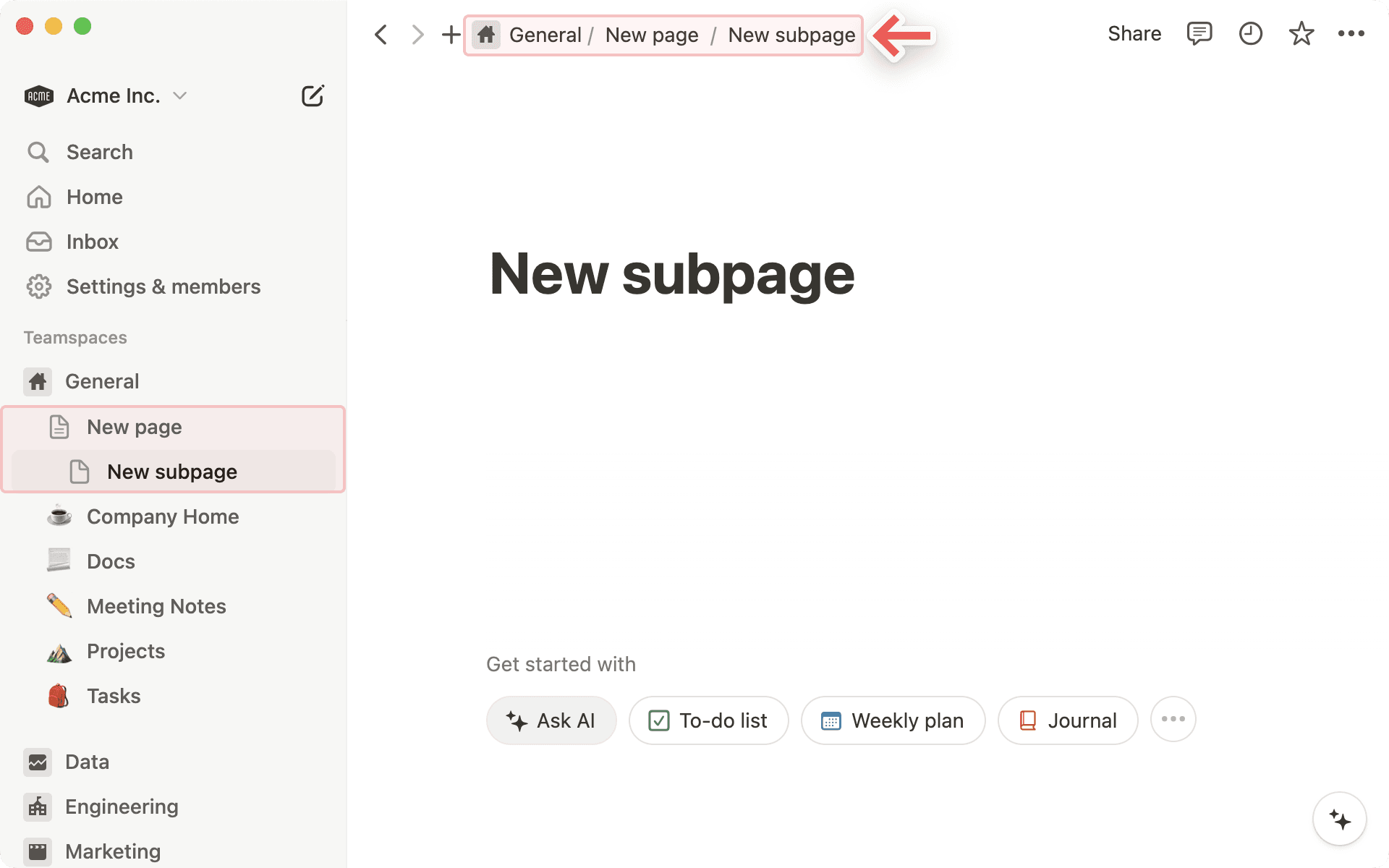
Breadcrumb navigation
Always know where you are in respect to your page structure. See how the page you're currently looking at fits into other pages.
You can click on any page in this breadcrumb to immediately jump to it. Sometimes this will be abridged with a
...— click to view all the pages in between.
Collaborators
You can see the profile photos of everyone else who has access to the page you're on. If you hover over any of them, you can see the full list, their names, and email addresses.
Greyed out avatars are people who are not currently viewing the page but have access to it.
When you collaborate in real-time on the same content, you can see people's photos moving around, corresponding to the block they're reading or editing.

Share menu

Each row in this menu represents a different person or group of people you can share the page with. The dropdown menus on the right let you set their level of access. Learn more about permissions here →
Copy linkcopies the page's unique URL to your clipboard so you can share it with whoever you want. Still, only people with access to the page can see it.Invitelets you add people both inside or outside your workspace to a page using their email address. Learn more about sharing here →
••• menu

This menu contains many options, including:
Lock page: Turn this on to prevent any edits from being made. This is good for preventing accidental edits on very important pages.Lock database: This option is only available for full page databases. When you turn this on, people can still enter data, but they can’t change views or properties.Customize page: Toggle the visibility of backlink and page comment sections.Move to: This opens up a menu where you can choose any other workspace or page to move the current page into.Updates & analytics: See what changes have been made to a page, how many times the page has been viewed, who created the page, and more.Version history: View past versions of the page going back several days, depending on what plan you're on.Import or sync from: You can add documents and data from a number of other apps (Evernote, Trello, Google Docs, etc.) to the page.Export: Download the page as a file to your computer. Databases get saved as CSV files, while non-database pages get saved as Markdown files. You can also export your page or database as PDF or HTML.
A workspace operates slightly differently if you're using it with a team than if you're using it on your own:
In personal workspaces, newly created pages will be private by default unless they're explicitly shared.
Sidebar organization under the
Teamspacesection is also viewable by all members. The page arrangement will look the same to everyone, although individuals can toggle different pages open or closed without affecting everyone's view.On Notion's Plus, Business, or Enterprise Plan, there are members and admins with different levels of permission. Learn more about sharing and permissions here →
คำถามที่พบบ่อย
ฉันสามารถสลับไปมาระหว่างพื้นที่ทำงานที่เชื่อมโยงกับที่อยู่อีเมลที่แตกต่างกันได้หรือไม่
ฉันสามารถสลับไปมาระหว่างพื้นที่ทำงานที่เชื่อมโยงกับที่อยู่อีเมลที่แตกต่างกันได้หรือไม่
หากต้องการเพิ่มพื้นที่ทำงานของคุณจากบัญชีอีเมลอื่น ให้ใช้ปุ่ม เพิ่มบัญชีอื่น ในตัวสลับพื้นที่ทำงานที่ด้านบนซ้ายของหน้าต่าง Notion ของคุณ และทำตามขั้นตอนเพื่อเข้าสู่ระบบบัญชีอื่นของคุณ อ่านเพิ่มเติมเกี่ยวกับเรื่องนี้ที่นี่ →
ฉันคลิกปุ่ม 'สร้างหรือเข้าร่วมพื้นที่ทำงาน' แต่ระบบให้ฉันสร้างพื้นที่ทำงานได้เท่านั้น แล้วฉันจะเข้าร่วมพื้นที่ทำงานได้อย่างไร?
ฉันคลิกปุ่ม 'สร้างหรือเข้าร่วมพื้นที่ทำงาน' แต่ระบบให้ฉันสร้างพื้นที่ทำงานได้เท่านั้น แล้วฉันจะเข้าร่วมพื้นที่ทำงานได้อย่างไร?
คุณจะเข้าร่วมพื้นที่ทำงานผ่านปุ่ม สร้างหรือเข้าร่วมพื้นที่ทำงาน ได้ก็ต่อเมื่อพื้นที่ทำงานนั้นเปิดใช้งาน โดเมนอีเมลที่ได้รับอนุญาต ซึ่งอนุญาตให้ผู้ใช้ที่มีโดเมนอีเมลเดียวกับคุณเข้าร่วมพื้นที่ทำงานโดยอัตโนมัติ.
หากต้องการเข้าร่วมพื้นที่ทำงาน คุณจะต้องขอให้ผู้ดูแลจากพื้นที่ทำงานนั้นส่งคำเชิญให้คุณ
หากต้องการเพิ่มพื้นที่ทำงานของคุณจากบัญชีอีเมลอื่น ให้ใช้ปุ่ม เพิ่มบัญชีอื่น ในตัวสลับพื้นที่ทำงานที่ด้านบนซ้ายของหน้าต่าง Notion ของคุณ และทำตามขั้นตอนเพื่อเข้าสู่ระบบบัญชีอื่นของคุณ อ่านเพิ่มเติมเกี่ยวกับเรื่องนี้ที่นี่ →
แถบด้านข้างของฉันไม่มีส่วนใดๆ เลย ฉันจะเปิดใช้งานส่วนเหล่านั้นได้อย่างไร
แถบด้านข้างของฉันไม่มีส่วนใดๆ เลย ฉันจะเปิดใช้งานส่วนเหล่านั้นได้อย่างไร
ส่วนต่างๆ ในแถบด้านข้างจะแสดงการตั้งค่าการแชร์ของบัญชีคุณ หากคุณมีบุคคลอื่นมากกว่าหนึ่งคนในพื้นที่ทำงานของคุณ ส่วน พื้นที่ทำงานของทีม จะปรากฏในแถบด้านข้างสำหรับการทำงานร่วมกันกับบุคคลนั้น และส่วน ส่วนตัว จะมีไว้สำหรับหน้าเพจส่วนตัวของคุณที่มองเห็นได้เฉพาะคุณเท่านั้น
เมื่อฉันสมัครสมาชิกแพ็คเกจ Plus แพ็คเกจนี้จะครอบคลุมพื้นที่ทำงานทั้งหมดของฉันหรือไม่?
เมื่อฉันสมัครสมาชิกแพ็คเกจ Plus แพ็คเกจนี้จะครอบคลุมพื้นที่ทำงานทั้งหมดของฉันหรือไม่?
แผนแบบชำระเงินจะมีผลกับพื้นที่ทำงานเดียวเท่านั้น และไม่ครอบคลุมทั้งบัญชี พื้นที่ทำงานจะแยกจากกันโดยสิ้นเชิง ดังนั้นคุณจะไม่สามารถเชื่อมโยงเนื้อหาใดๆ ระหว่างกันได้
เราขอแนะนำให้ใช้จำนวนพื้นที่ทำงานให้น้อยที่สุดเท่าที่จะเป็นไปได้ และใช้ประโยชน์จากหน้าระดับบนสุดในแถบด้านข้างของคุณเพื่อจัดระเบียบ
ฉันจะย้ายเนื้อหา Notion ทั้งหมดของฉันไปยังพื้นที่ทำงานอื่นได้อย่างไร
ฉันจะย้ายเนื้อหา Notion ทั้งหมดของฉันไปยังพื้นที่ทำงานอื่นได้อย่างไร
หมายเหตุ: เนื้อหาที่ย้ายไปจะถูกทำซ้ำไปยังพื้นที่ทำงานใหม่ และหน้าเหล่านี้อาจมีปัญหาในบางครั้ง สำหรับข้อมูลเพิ่มเติม คลิกที่นี่
หากต้องการย้ายเนื้อหาของคุณจากพื้นที่ทำงานหนึ่งไปยังอีกพื้นที่ทำงานหนึ่งที่เชื่อมโยงกับบัญชีเดียวกัน ให้คลิก ••• ถัดจากหน้าระดับบนสุดแต่ละหน้าในแถบด้านข้างของคุณ (หรือคลิกขวา) แล้วเลือก ย้ายไปที่ ที่ด้านล่างของเมนูย้าย คุณจะเห็นเมนูแบบเลื่อนลงเพื่อเลือกพื้นที่ทำงานอื่น
เมื่อคุณย้ายหน้าระดับบนสุด หน้าย่อยทั้งหมดของหน้านั้นจะถูกย้ายไปด้วย หน้าเหล่านั้นจะปรากฏในส่วน ส่วนตัว แต่สามารถย้ายไปยังที่ที่คุณต้องการได้
จะทำอย่างไรหากฉันเผลอลบสิ่งใดสิ่งหนึ่งไปอย่างถาวร มีวิธีเรียกคืนหรือไม่
จะทำอย่างไรหากฉันเผลอลบสิ่งใดสิ่งหนึ่งไปอย่างถาวร มีวิธีเรียกคืนหรือไม่
หากคุณลบหน้า พื้นที่ทำงาน หรือแม้แต่บัญชีทั้งหมดของคุณโดยไม่ได้ตั้งใจ เราช่วยคุณได้! อุบัติเหตุเกิดขึ้นได้ 😅 เพียงส่งข้อความถึงเราในแอปโดยคลิก ? ที่ด้านล่างของแถบด้านข้างของคุณ หรือส่งอีเมลถึงเราที่ [email protected]
เรามีการสำรองฐานข้อมูลไว้ ซึ่งจะช่วยให้คืนค่าเนื้อหาของคุณในช่วง 30 วันที่ผ่านมาได้หากคุณต้องการ
ฉันจะออกจากระบบบัญชี Notion ของฉันได้อย่างไร
ฉันจะออกจากระบบบัญชี Notion ของฉันได้อย่างไร
คลิกที่ชื่อพื้นที่ทำงานปัจจุบันของคุณที่ด้านบนสุดทางซ้ายของแถบด้านข้าง เลื่อนลงไปที่ด้านล่าง แล้วคุณจะเห็นตัวเลือก ออกจากระบบ ถัดจากที่อยู่อีเมลของคุณ