Navigate with the sidebar
Rất tiếc! Có vẻ như trình chặn quảng cáo của bạn đang ngăn không cho phát video.
Vui lòng xem trên YouTube

Notion's sidebar makes it easy to structure all the content in your workspace. Here's everything you need to know on how to organize, rearrange, and find your pages within the sidebar.
Chuyển đến Câu hỏi thường gặpThe Notion sidebar allows you to:
Organize your work on infinite levels — you can nest pages inside other pages with no limit.
See where everything is and how it’s organized with toggles you can open and close.
Drag and drop pages to reorganize them.

Mẹo: Mở và đóng thanh bên của bạn bằng cách nhấp vào các /nút >> và <<. Hoặc, sử dụng phím tắt cmd/ctrl + \\!
In your sidebar, you'll see several features and menu options. Here's an overview of each of these.
Workspace switcher: Click on your current workspace's name to switch between the workspaces you belong to, create a new one, add another account, or log out. You can also access your settings from inside the workspace switcher.
Search: Click to open Notion's search window, where you can either type what you're looking for or jump to a recently visited page. The shortcut
cmd/ctrl+Kalso brings it up.Home: Click to see the pages and tasks that need your attention. Learn more about Home here →
Chats with Notion AI: Click to search and research with Notion AI. Learn more about Notion AI here →
Meetings: Click to see upcoming meetings and notes so you can quickly prep for a meeting, or review what happened after.
Inbox: Click to see all your notifications in one place. This menu combines revisions that were made on pages you have created, new mentions of you across your workspace, and new work assignments. A red notification badge will appear here when you have unread notifications.
Library: Click to browse and manage all content across your workspace. Learn more about Library here →
Top-level tabs
The sidebar is organized into top-level tabs. Each tab has its own icon, contents, and purpose.
Home
Your Home tab is organized in sections, including Upcoming events, Recents, Favorites, Agents, Teamspaces, Shared pages, Private pages, and Notion apps.
My Tasks, Library, Marketplace, Help, and Trash sections are always accessible at the bottom of the Home tab.
Customize Home
To customize Home, click ••• on the side of any section or the Home tab icon.
Show allows you to determine the number of items each section shows.
Move up or Move down adjusts where a section is displayed in Home.
Hide section hides a section from Home.
Customize sidebar allows you to hide multiple row items and sections at once.
Open in Library
Next to each section, click the book icon to Open in Library. From Library, you can browse and navigate the full list of workspace content within that section. Learn more about Library in this article.
Chats with Notion AI
Access Custom Agents and your Notion AI conversations to browse recent threads or pick up where you left off.
Agents
View Custom Agents you’ve created, sorted by recency of use. Click ••• on the side of any Custom Agent and choose Remove from favorites or Add to favorites to adjust how it appears in your sidebar. You can also jump to the agent’s settings, copy the link to an agent, or delete an agent.
Chat history
Access previous chats with Notion AI, sorted by recency. A blue dot next to a chat means there is an unread response in the chat.
Click ••• on the side of any chat to customize how they appear in the sidebar: Rename, Change icon, Delete, or Open chats.
Meetings
Upcoming events
View and join any upcoming events. Click ••• on the side of any event to view the Call ID, Workspace participants, or Open in calendar.
Meeting history
Access meeting notes from previous meetings, sorted by recency. Click ••• on the side of any meeting note to Copy link to block, Duplicate, or Move to to add the meeting note to a page.
Inbox
View all your notifications in one place, including mentions, comments, page updates, and reminders. Click a notification to go directly to the source page.
Icons at the top of your inbox can bulk take actions like Mark all as read, Archive all, Archive read, or apply filters to the notification list.
Click ••• on the side of any notification to change page notification settings, mark a notification as read, or archive a notification.
Search
Open the search modal to search content inside your workspace.
Quick entry points
At the bottom of each tab, you can create a new chat with AI, page, meeting note, or database using the buttons.
Mẹo:
Nhấp vào tên của một phần thanh bên —
Không gian nhóm,Đã chia sẻhoặcRiêng tư— để thu gọn phần đó và giữ cho thanh bên của bạn gọn gàng.Nhấp và kéo các phần thanh bên của bạn để sắp xếp lại chúng.
Private pages
Every user's workspace comes with a Private section. Anything you add here is only visible to you, and can't be seen by the people in your workspace. This section is where you might store your own tasks or notes, or pages you want to work on individually before sharing with others.
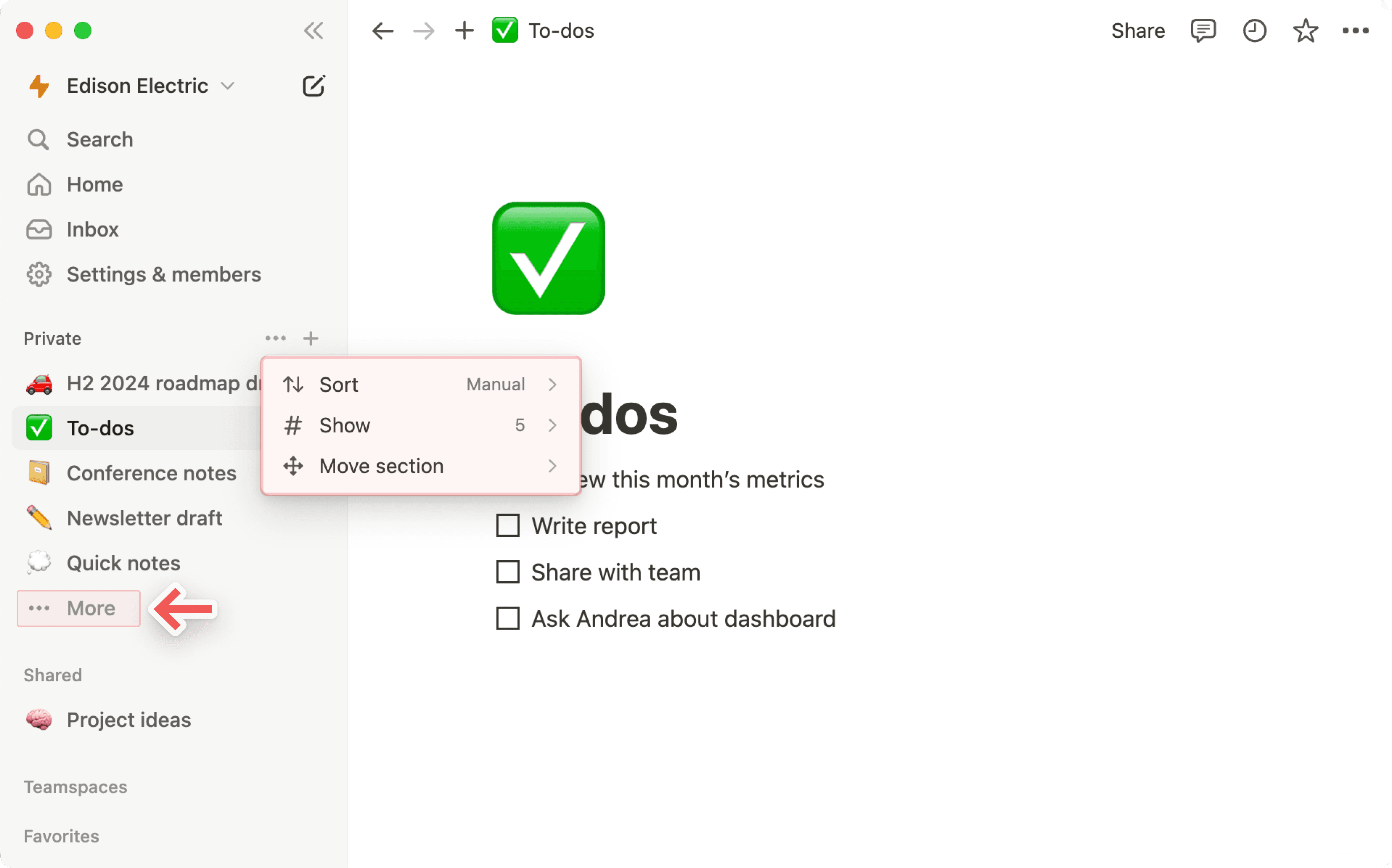
You can customize this section of your sidebar to display your pages in specific ways. To customize the private section of your sidebar:
Hover over
Privatein your sidebar and select•••.Select
Sort, thenManualorLast edited. AManualsort will allow you to manually drag your private pages to order them, while aLast editedsort will order your private pages based on how recently you edited them.Select
Showto choose how many pages you want displayed in the sidebar, ranging from 5 pages to all of your pages. Let’s say you choose to show10 items— if you have more than 10 total private pages, you can click onMoreat the bottom of your private section to see all of your private pages.Select
Move section, thenMove uporMove downif you want your private pages to sit higher or lower in your sidebar.
Private pane
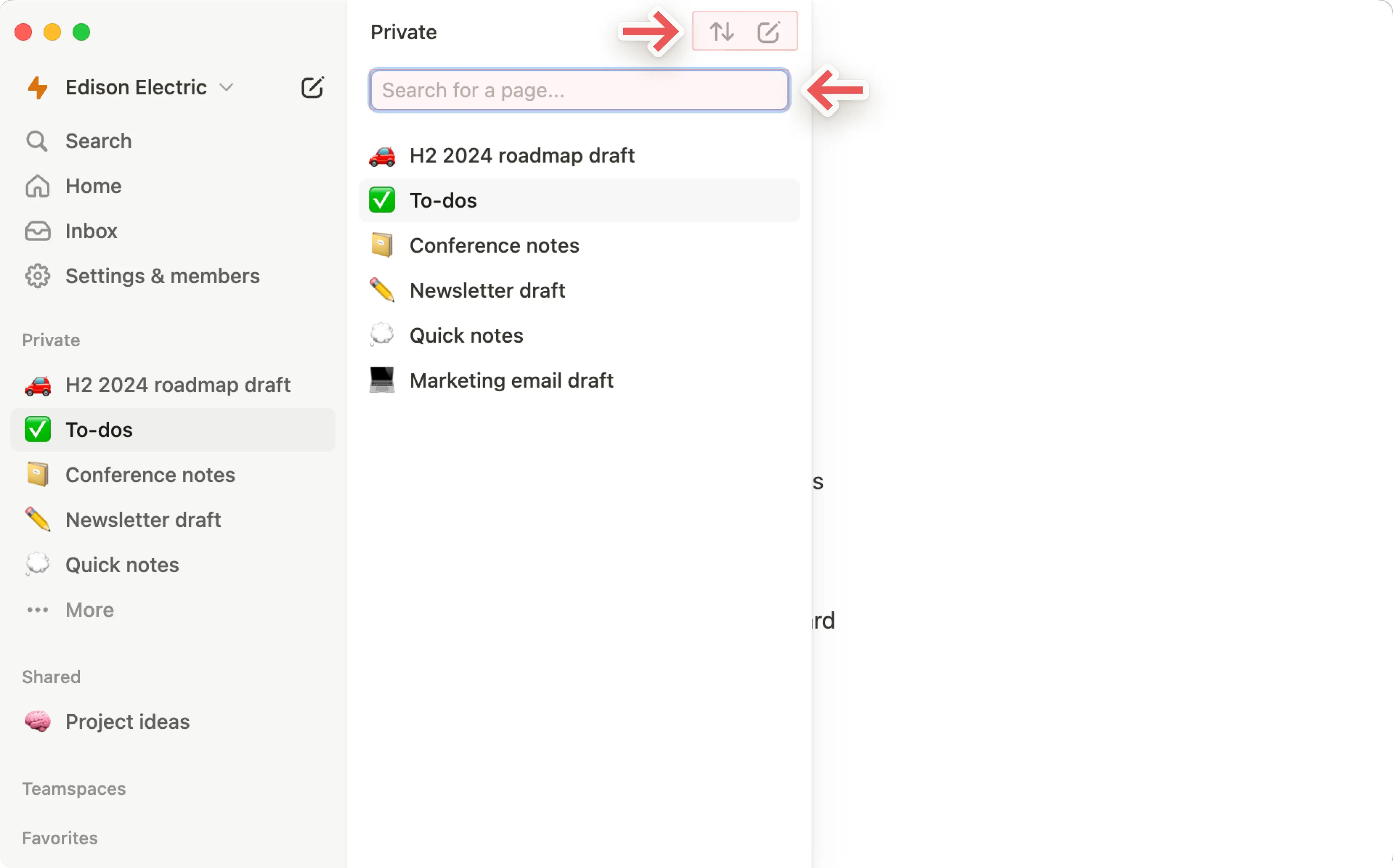
If you’ve chosen not to display all your private pages in your sidebar, you’ll be able to select More at the bottom of your last displayed private page to open up a pane that will show you all of your private pages. From here, you can:
Search for a page.
Select
⇅at the top to change how the pages are sorted. This will also change how the pages are displayed in your sidebar.Select
>>, which will appear on hover at the top to keep the private pane open.Select the new page icon at the top to create a new private page.

Note: If you drag a page from Workspace into Private in your sidebar, everyone else will lose access.
Shared pages
Any pages that you've shared with select individuals in your workspace will appear under your sidebar's Shared section. You'll see this category in your sidebar as soon as you invite someone to a shared page.
Other members of your workspace who haven't been invited can't view these pages. This section might store one-on-one meeting notes or pages where you’re brainstorming with a couple of other people.
You can customize this section of your sidebar to display your pages in specific ways. To customize the shared section of your sidebar:
Hover over
Sharedin your sidebar and select•••.Select
Sort, thenManualorLast edited. AManualsort will allow you to manually drag your shared pages to order them, while aLast editedsort will order your shared pages based on how recently you edited them.Select
Showto choose how many pages you want displayed in the sidebar, ranging from 5 pages to all of your pages. Let’s say you choose to show10 items— if you have more than 10 total shared pages, you can click onMoreat the bottom of your shared section to see all of your shared pages.Select
Move section, thenMove uporMove downif you want your shared pages to sit higher or lower in your sidebar.
Shared pane
If you’ve chosen not to display all your shared pages in your sidebar, you’ll be able to select More at the bottom of your last displayed shared page to open up a pane that will show you all of your shared pages. From here, you can:
Search for a page.
Select
⇅at the top to change how the pages are sorted. This will also change how the pages are displayed in your sidebar.Select
>>at the top to keep the shared pane open.
Teamspace pages
If you're on a Plus, Business, or Enterprise Plan, you'll see a sidebar section called Teamspaces. Teamspaces can be used by and tailored for every team within your organization or company. Learn more about teamspaces →
Every workspace has at least one default teamspace, which all members will see in their sidebar. Any of the pages in default teamspaces in your sidebar can be seen and shared by the other members of the workspace.
In the Teamspaces section, you'll also see any other teamspaces that you are a member of. Click the name of any teamspace to reveal or hide its nested pages.
Keep your sidebar clean by leaving any teamspaces you don't need to access. Hover over the teamspace name and click ••• → Leave teamspace.
Favorites
Favorites is where you can easily access all of the pages most important to you. This section will appear in your sidebar once you favorite your first page.
To add a page to your favorites, navigate to it, then click ⭐ at the top of it. You'll see it appear under Favorites in your sidebar.
To remove a page from your favorites, open it and unclick ⭐ at the top. You can also hover over the page in your sidebar and click •••. You'll see the option to Remove from Favorites.
You can open up each toggle in your sidebar to reveal pages nested inside other pages. All pages have the same functionality, even if they're nested as sub-pages.
For database pages, you can open the toggle to see all the different views you've created of that database. These are represented with a • next to them.
At the bottom of the sidebar, there are a couple more workspace essentials.
Settings: Adjust Notion to your preference. Learn more about settings here →
Templates: This opens our template picker, where you can create a new page using starter content to help you accomplish any one of 50+ jobs.
Trash: The
Trashcontains all the pages you delete. You can drag and drop them in here. You can also click on trash to search, view and restore these pages. Note that you won’t be able to edit a page that’s in the trash unless you restore it.
Ghi chú: Theo mặc định, các trang sẽ nằm trong Thùng rác trong 30 ngày trước khi bị tự động xóa khỏi Thùng rác. Chủ sở hữu không gian làm việc của gói Enterprise có thể tùy chỉnh các cài đặt này. Tìm hiểu thêm tại đây →
There are several ways to create new pages using Notion's sidebar:
On hover, you'll see a
+sign appear next to every teamspace name.Click to add a page within that teamspace.
If you don't see this, then a teamspace owner has disabled editing of the teamspace sidebar. You'll need to contact that teamspace owner to change this setting.
You'll also see a
+sign next to thePrivatesection. Click to add a new page that only you can access.There's also a
📝button at the top of your sidebar.This creates a new page in preview mode, letting you start a new page and then choose where to put it in your workspace (or one of your other workspaces) using a dropdown menu. If you don't choose, it will default to your
Privatesection.
Lastly, if you hover over any existing page in your sidebar, you'll see a
+appear. Click that to add a page nested inside that page.
It doesn't take much to move pages around your sidebar. Just drag and drop!
Nest pages by dragging one into another. You'll see the selected page highlight blue.
You can also drag pages out of pages they were once nested inside.
If you drag a page from a shared section (
TeamspacesorShared) intoPrivate, others will lose access.
Your sidebar is flexible. You can configure it however is most helpful for you.
Just click and drag the right edge to resize it.
Click the << icon to collapse or expand your sidebar.
You can also collapse or hide the
Favorites,Workspace,Shared, orPrivatesections of your sidebar. Just click on those headings to hide or reveal them.
There are a few ways to delete pages from your sidebar:
Click on the
•••icon that appears when you hover over a page and selectDelete.Drag a page from your workspace into the
Trash. This will delete all the sub-pages nested within that page, including database items.Go to
Libraryand select the section name. Then, clickRemove from sidebar.
Câu hỏi thường gặp
Làm thế nào để tôi đăng xuất khỏi tài khoản Notion của mình?
Làm thế nào để tôi đăng xuất khỏi tài khoản Notion của mình?
Nhấp vào tên không gian làm việc hiện tại của bạn ở góc trên cùng bên trái thanh bên. Cuộn xuống dưới cùng, bạn sẽ thấy tùy chọn Đăng xuất bên cạnh địa chỉ email của mình.
Thanh bên của tôi không có phần nào cả. Làm thế nào để tôi bật các phần đó?
Thanh bên của tôi không có phần nào cả. Làm thế nào để tôi bật các phần đó?
Các phần trên thanh bên phản ánh cài đặt chia sẻ tài khoản của bạn. Nếu bạn có nhiều hơn một người trong không gian làm việc của mình, phần Không gian nhóm sẽ xuất hiện trên thanh bên để bạn cộng tác với người đó, và phần Riêng tư dành cho các trang cá nhân chỉ mình bạn nhìn thấy.
Tại sao tôi không còn thấy Trang chủ toàn trang nữa? Bạn có thay đổi thanh bên không?
Tại sao tôi không còn thấy Trang chủ toàn trang nữa? Bạn có thay đổi thanh bên không?
Trang chủ đã thay đổi từ trải nghiệm Toàn trang thành một phần trong thanh bên của bạn, được sắp xếp thành các mục như Gần đây, Yêu thích, không gian nhóm, trợ lý và nhiều mục khác, có thể được tùy chỉnh để phù hợp với quy trình làm việc của bạn. Điều này giúp tập hợp điều hướng không gian làm việc, các chuỗi AI và thông báo của bạn vào một nơi nhất quán và có thể tùy chỉnh.
Tôi sẽ thấy gì nếu đang sử dụng Gói Miễn phí hoặc Gói Plus, hoặc nếu AI bị tắt đối với không gian làm việc của tôi?
Tôi sẽ thấy gì nếu đang sử dụng Gói Miễn phí hoặc Gói Plus, hoặc nếu AI bị tắt đối với không gian làm việc của tôi?
Gói Miễn phí và Gói Plus: Bạn sẽ thấy bố cục thanh bên đầy đủ, bao gồm cả tab trò chuyện AI. Bạn có thể sử dụng Notion AI với các khoản tín dụng AI Miễn phí hiện có của mình.
AI bị tắt (Enterprise/Business): Tab trò chuyện AI sẽ không xuất hiện. Thay vào đó, bạn sẽ thấy /nút Mới ở vị trí đó để tạo trang và các nội dung khác.
